

Get started
Workspace
The workspace is the main page for working in DeepShelf. Click any project card to open that project’s workspace.
Projects
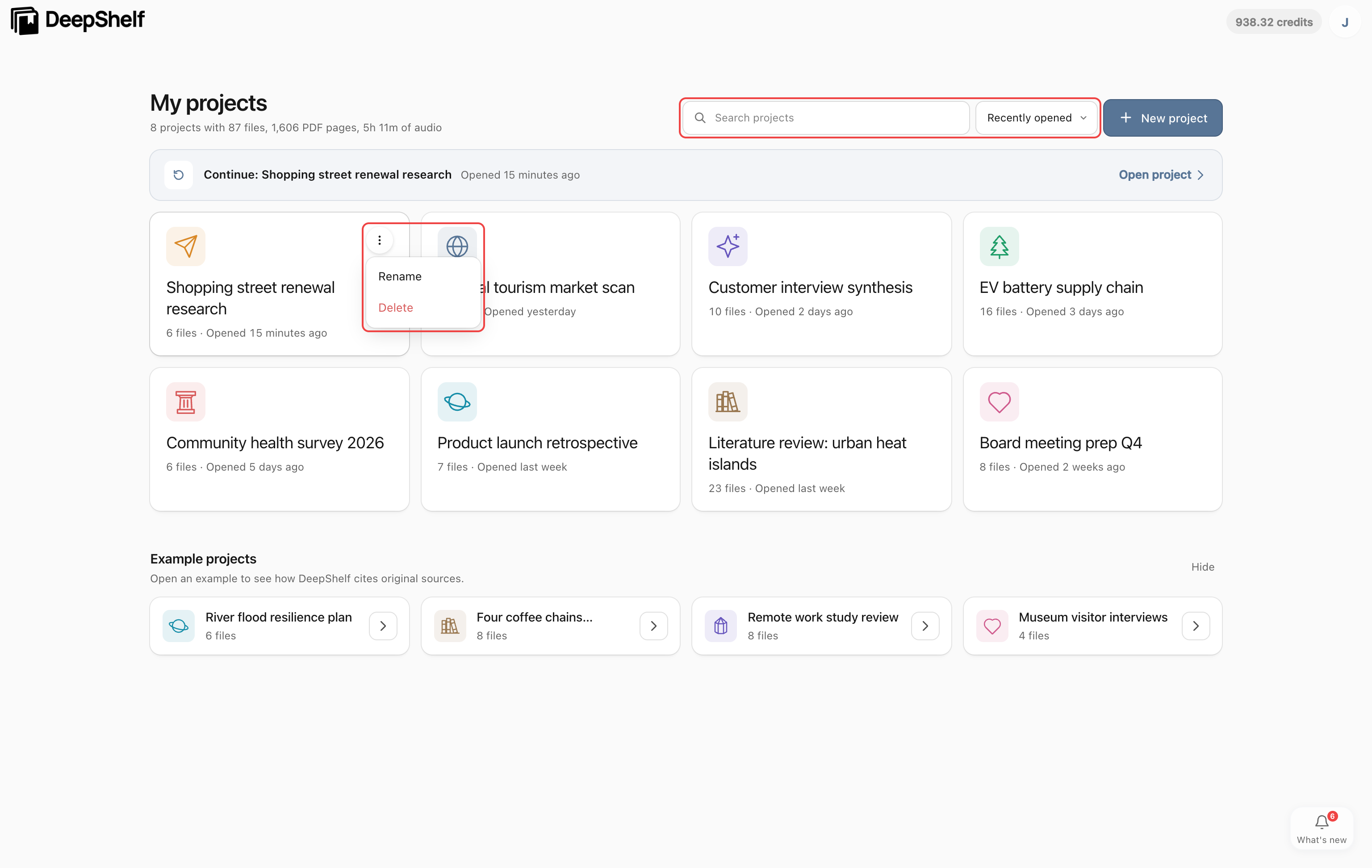
Open the workspace and click a project card under My projects. Search by name or change the sort order; use a card’s ⋯ menu to rename or delete a project.
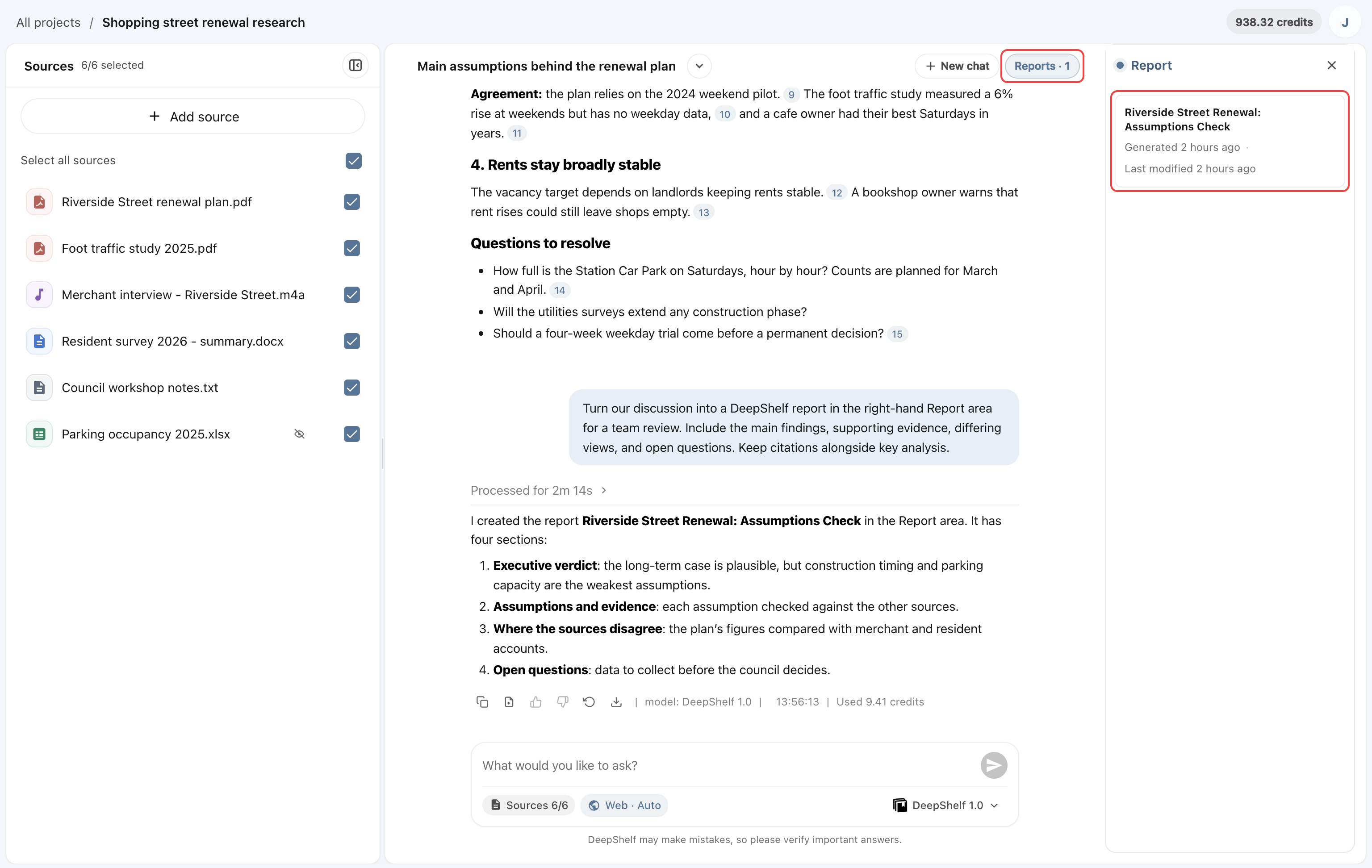
The workspace has three areas: Sources on the left shows your uploaded material; the conversation in the center is where you ask questions about it; and the report area on the right shows reports generated in the conversation. Click Reports · N at the top of the conversation to show or hide it. Each area is described below.
Sources
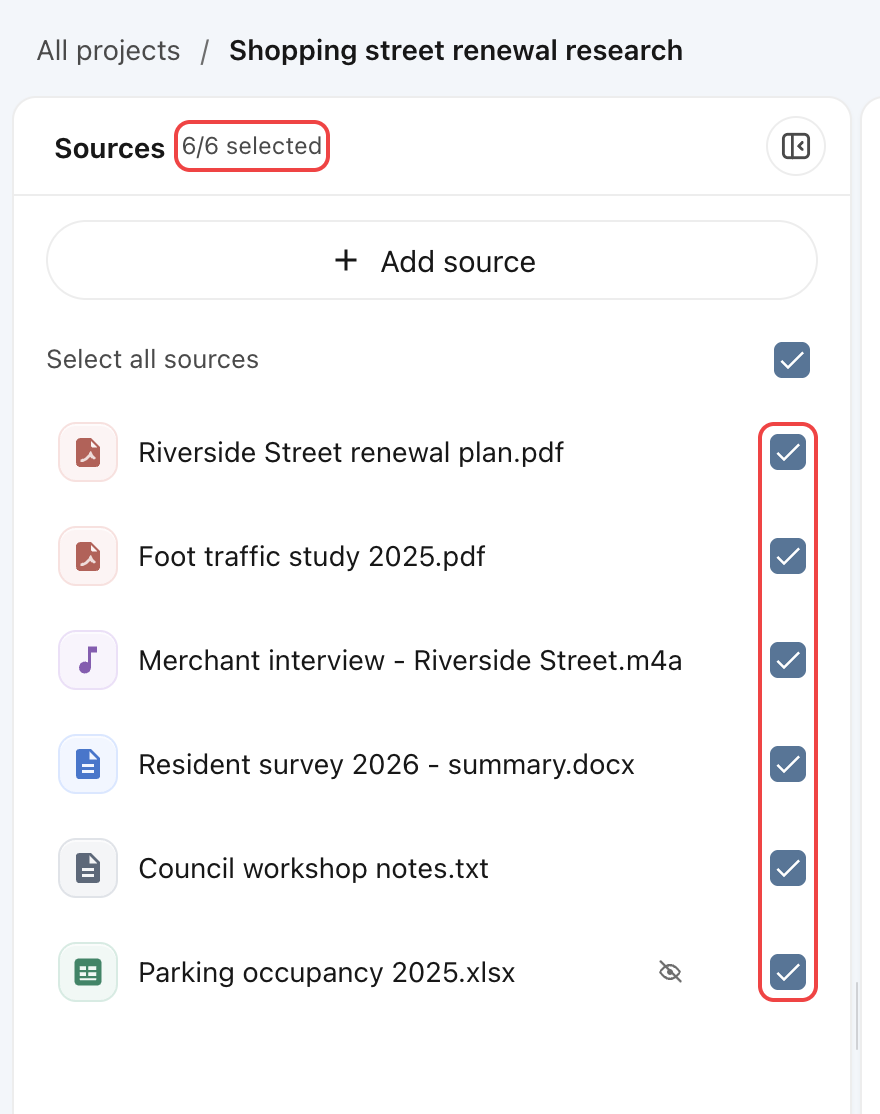
Sources on the left lists your project files, with the number selected at the top. Add material, check the files to use, or click a file to preview it. The button at the top right collapses the panel.
Opening a citation in an answer or report expands the panel and jumps to the original text.
Conversations
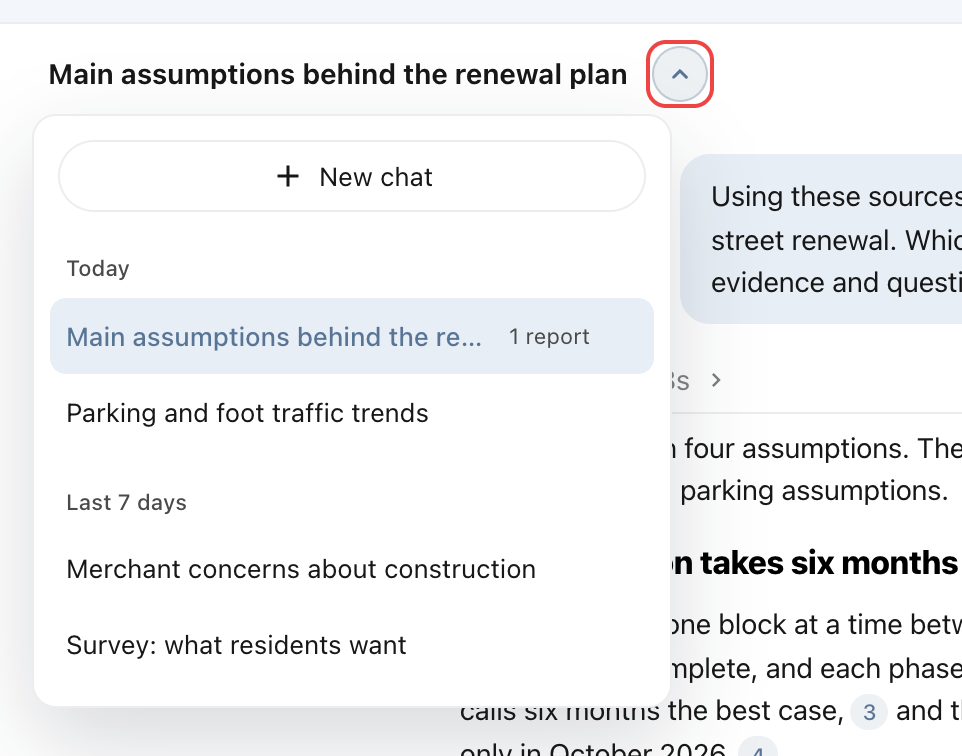
Send questions from the input box. Answers and generated files stay in the current conversation. Click the arrow beside the title to switch or delete conversations, or click New chat to start another question.
Click the conversation title to rename it; press Enter to save or Esc to cancel.

Outputs
Click Reports · N at the top of the conversation to show its report list, then select a report or presentation to open it. Download code and other files from the file cards below an answer.