
Prepare sources
Source uploads
Answering based on uploaded sources is one of DeepShelf’s core features. Upload reliable sources of information, such as PDF files or MP3 audio.
Uploads
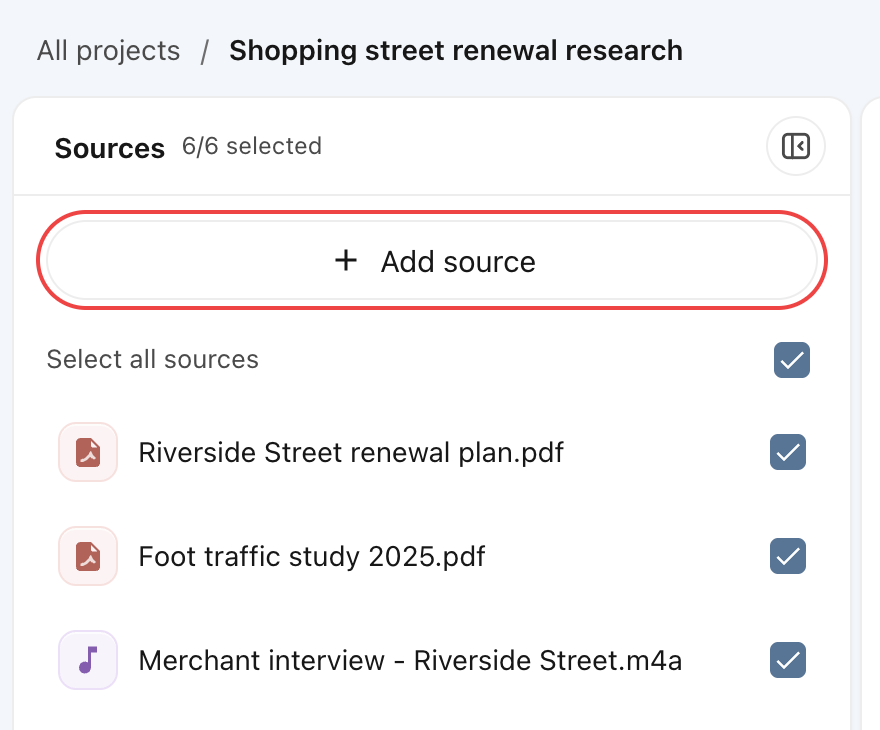
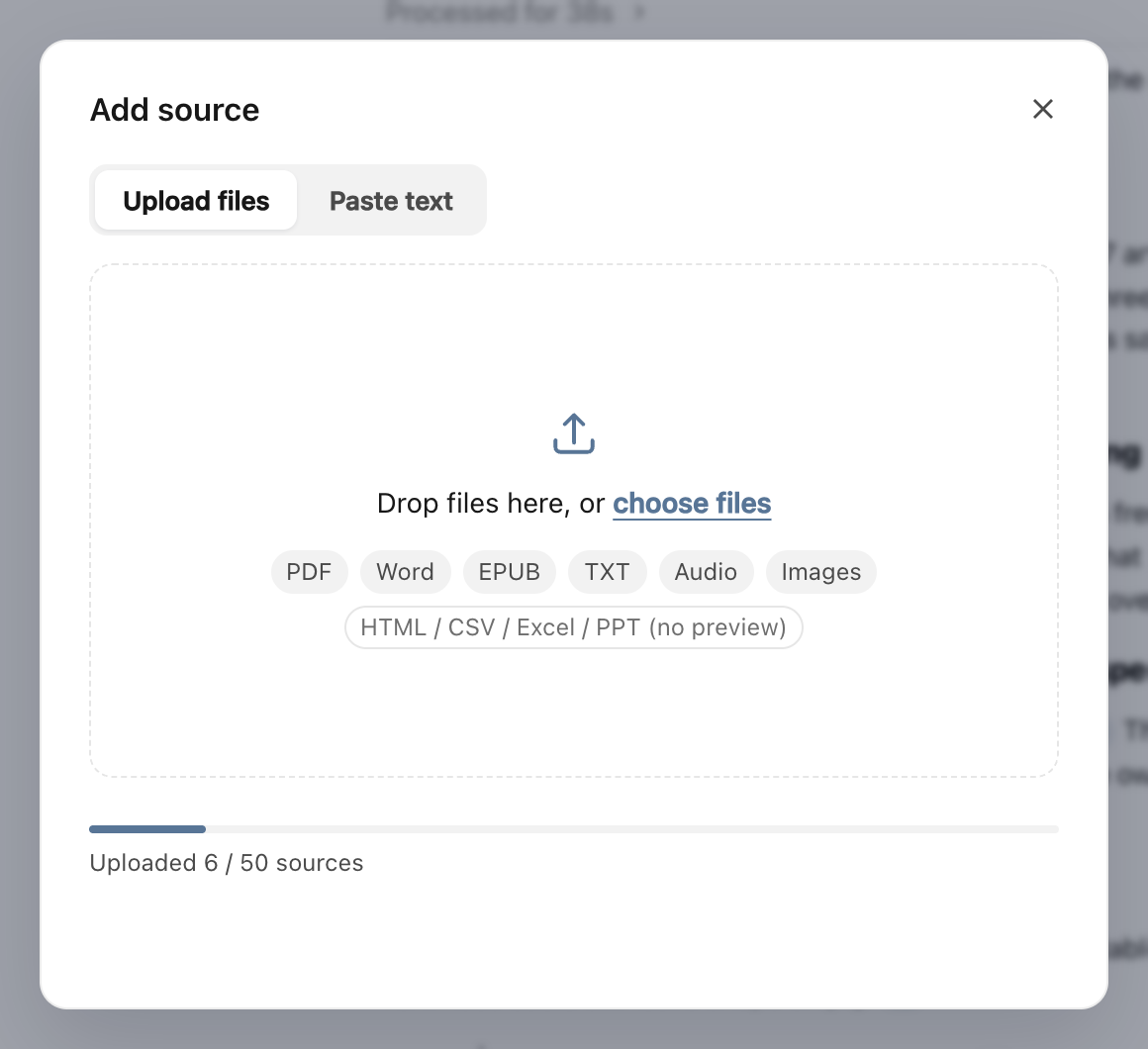
Click Add source at the top of Sources on the left. In the dialog, click choose files or drag files into the upload area; you can add several at once. Upload progress appears in the source list.
Paste text
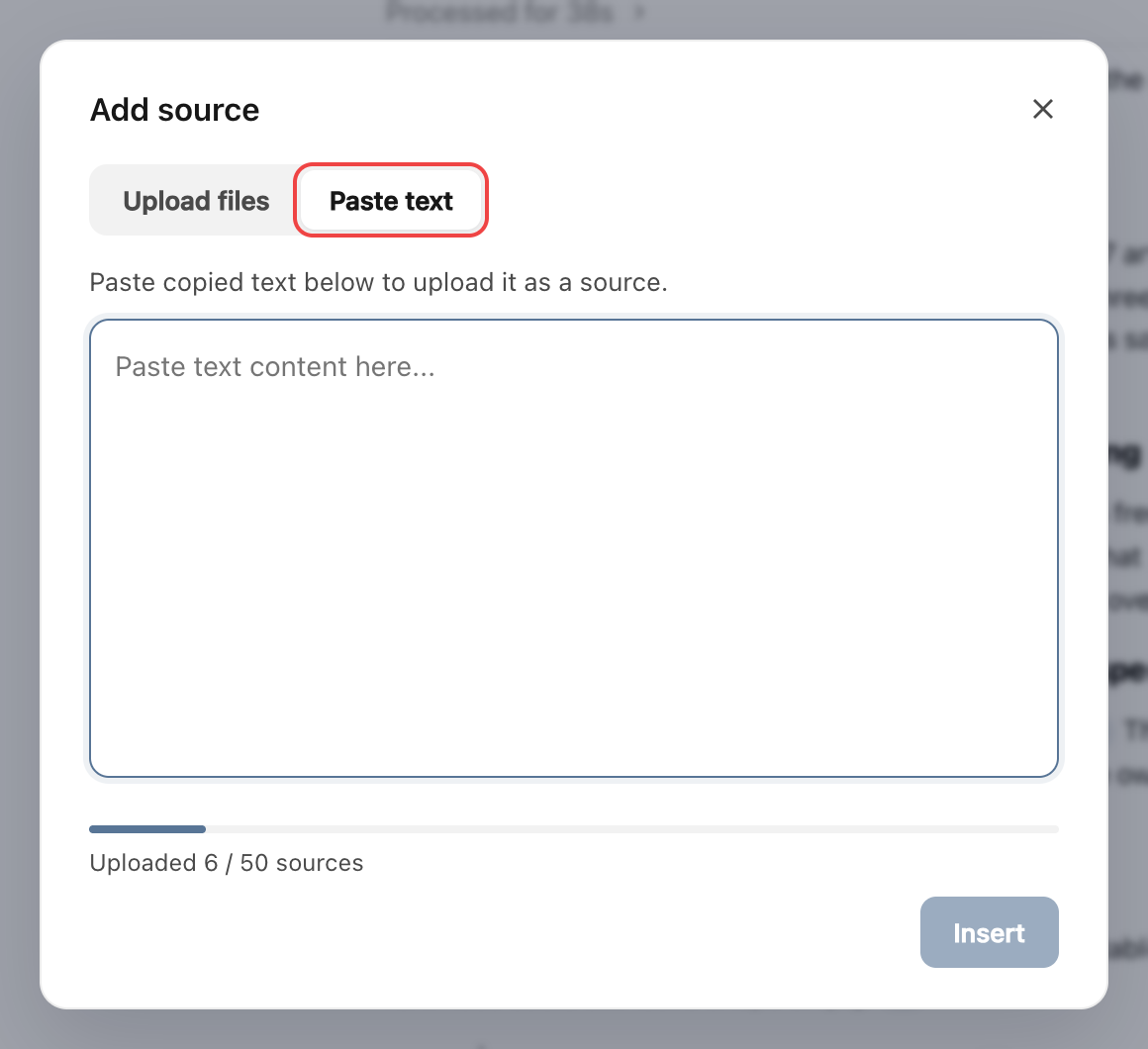
In the same dialog, switch to Paste text, paste your content, then click Insert. It is saved as a TXT source with a filename starting with PastedText and counts as one file.
Wait for processing
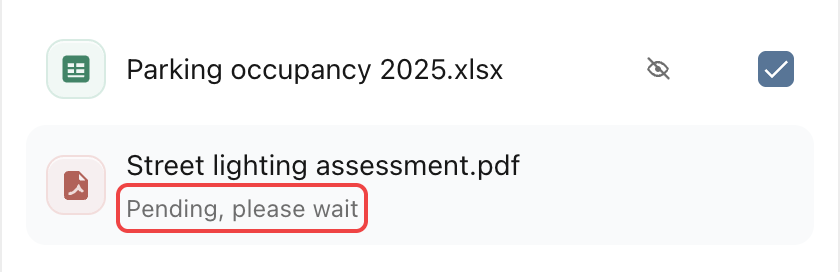
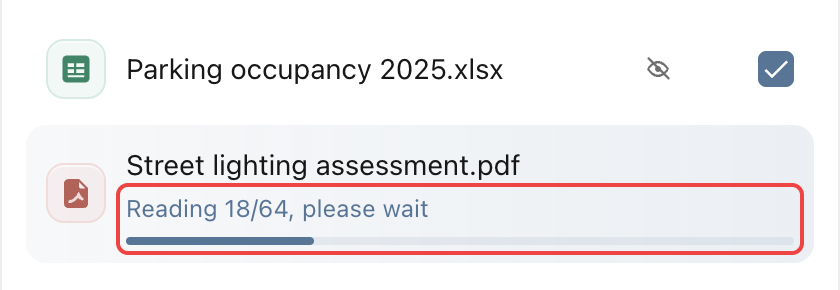
After uploading, a source may still show Pending, Reading, or Understanding. Wait until that message disappears and a checkbox appears beside the file before asking a question.
If a file shows Parsing failed, Couldn’t read this Word file, or Unrecognized text encoding, follow the steps in Parsing failures.
Select specific files
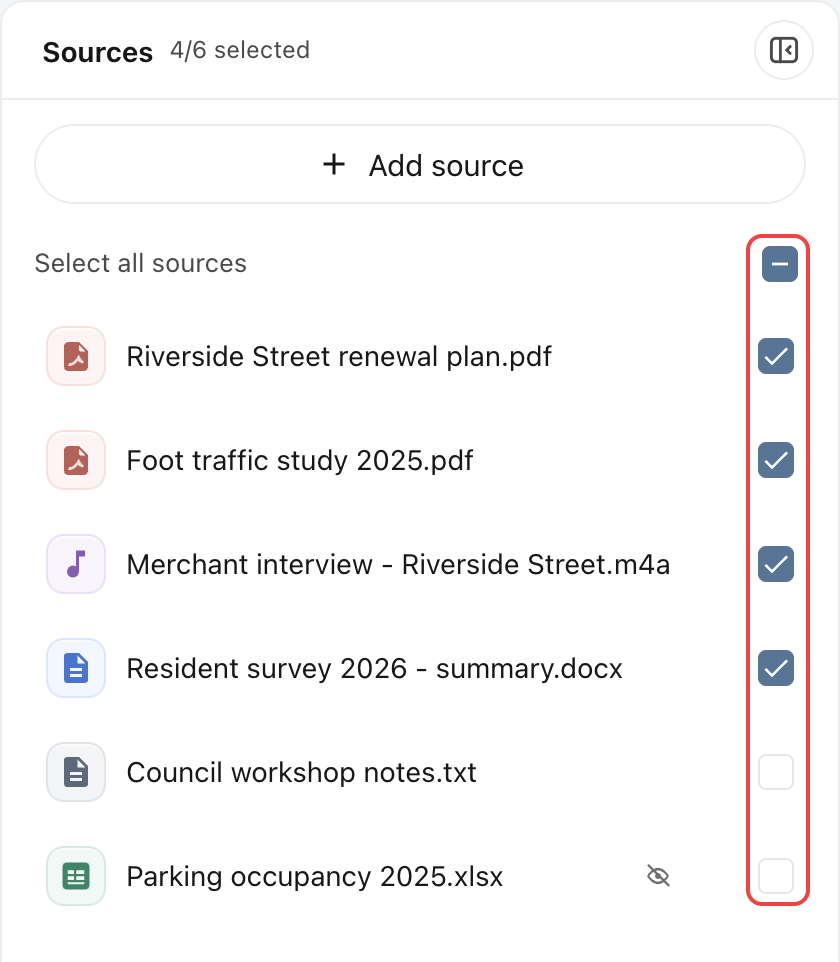
Newly processed sources are selected automatically. The model refers to all currently selected files when answering questions.
Use the checkboxes or Select all sources to adjust the material for your question. Uncheck other files when focusing on a subset.