
Create reports and files
Reports
DeepShelf reports are a dedicated format for research outputs, displayed in the Report area on the right and created and revised through conversation. The format is optimized for Word and PDF: compared with having a model write code to create files, DeepShelf handles sections, citation display, and export layout consistently. Before exporting, you can open the original evidence behind the report’s conclusions, verify it, and then export to Word or PDF.
The model decides whether to use this format. Even when you explicitly request a report, it may produce a chat response or another file type. Behavior can differ between models.
Generate
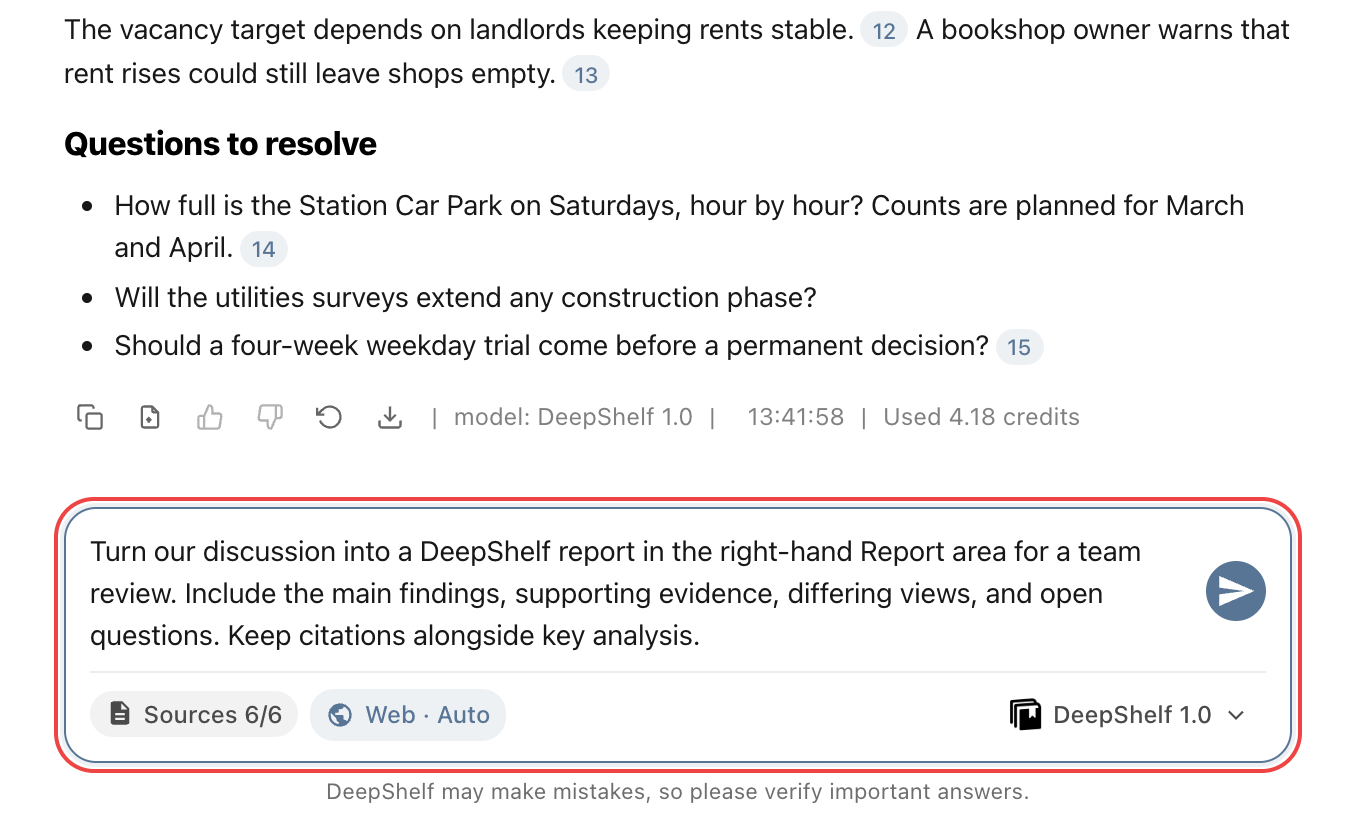
Explicitly ask for a DeepShelf report in the conversation. State its purpose, audience, scope, and structure, then click Send or press Enter. You can discuss the sources and outline before requesting the report.
ExampleTurn our discussion into a DeepShelf report in the right-hand Report area for a team review. Include the main findings, supporting evidence, differing views, and open questions. Keep citations alongside key analysis.
Open
When a report is ready, the report list opens on the right with the new report highlighted; click its name to open it. Later, click Reports · N at the top of the conversation to show or hide the list. Reports belong to the conversation that created them, and the model cannot read them from another conversation. Return to the original conversation to view or keep editing a report.
To rename a report, click its title at the top of the detail panel, enter a new name, and press Enter or move focus away to save.

Verify
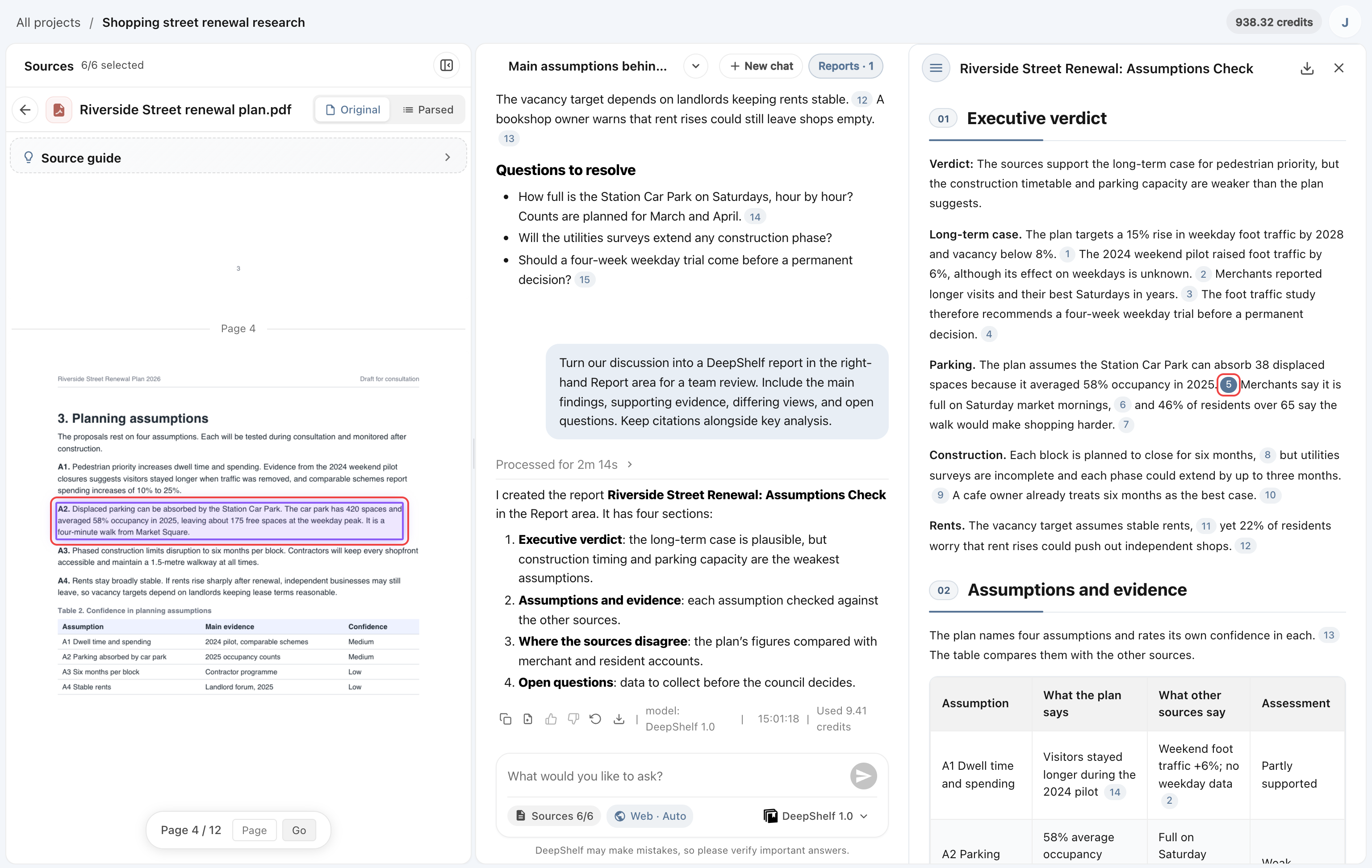
Check the report’s structure, figures, and conclusions. Open citations alongside key analysis to review the original material and its context, and confirm that it supports the report’s findings.
Revise
In the original conversation, name the report and explain what to change and what to retain. When the update is ready, reopen the report and check the changes and citations.
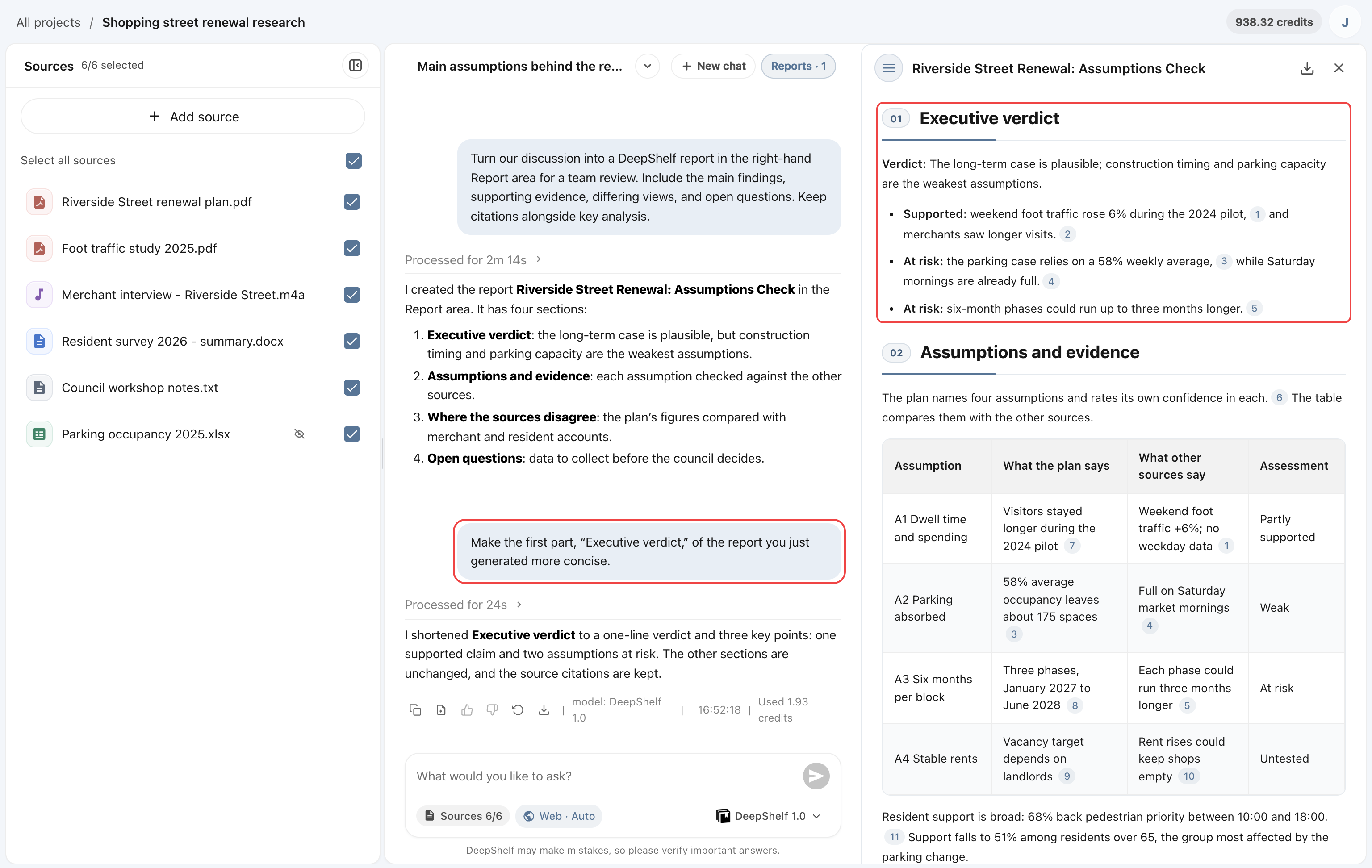
ExampleMake the first part, “Executive verdict,” of the report you just generated more concise.
Before the revision, the Executive verdict is an overall verdict followed by four long paragraphs.
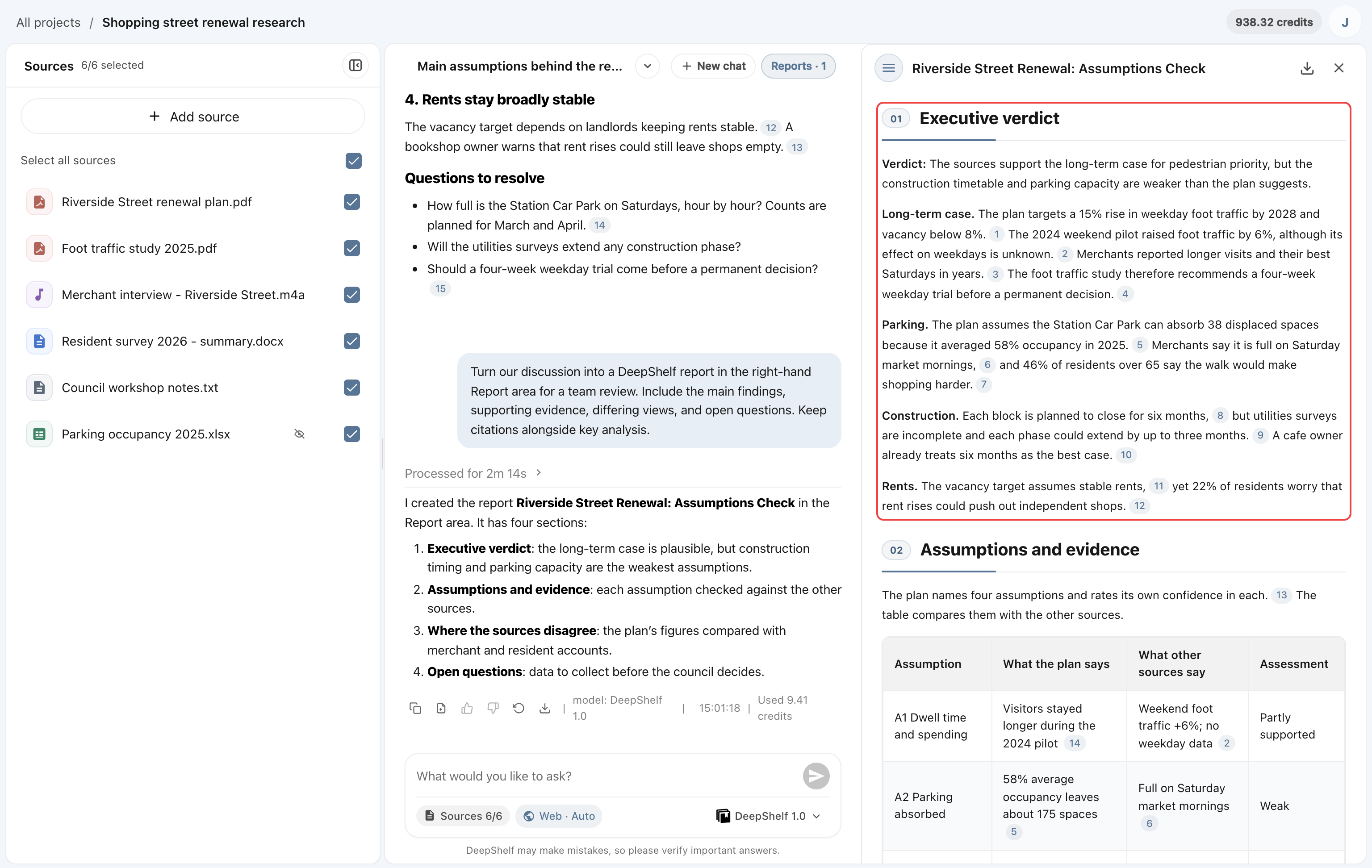
After the revision, it is a one-line verdict and three key points, with citations kept.
Export
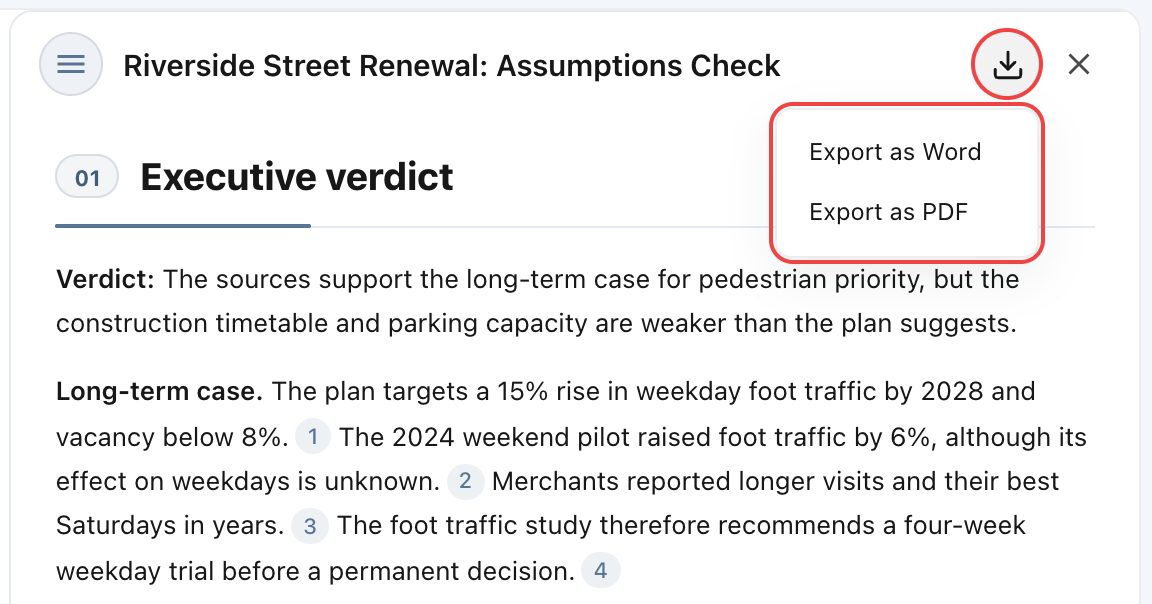
Click the Export report icon at the top right of the detail panel, then choose Export as Word or Export as PDF to save a DOCX or PDF file. If the export fails, reopen the menu and try again.
Exporting removes the workspace’s citation marks. Verify the original material first. If recipients need source information, ask to add source names, authors, or page numbers to the report text, and check these before exporting.